

Website caching keeps a ready made copy of a page or file and serves it to the next visitor instead of building it again. You get more speed and less load on the server. The cost is that someone can be shown an old copy when the layers are not set carefully.
What is caching, in plain terms?
Think of a kitchen that prepares its most ordered dish before anyone orders it. Whoever asks for that dish gets it in seconds, and whoever wants something unusual waits for it. Caching does the same with pages: it stores the finished result and hands it out again.
Without it, every single visit to one page means database queries, template work and a page assembled from nothing, even if not one character has changed in a week. That repeated work is paid for in load time and in hosting resources.
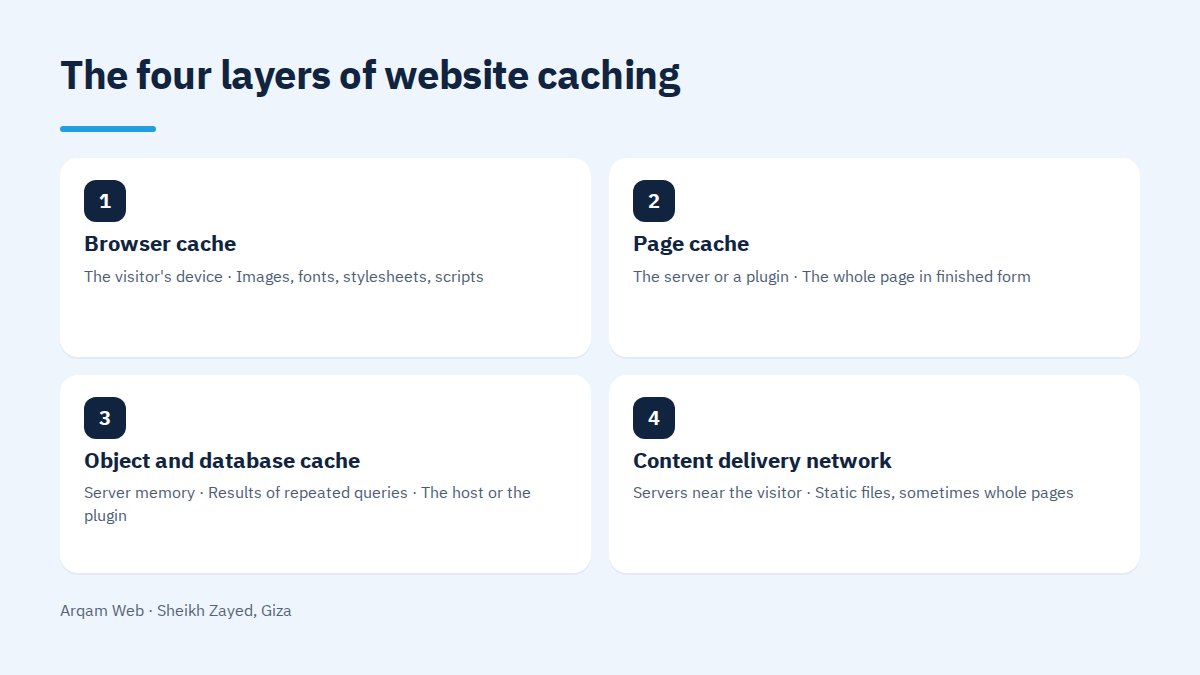
The four layers of website caching
One word covers four layers, and telling them apart is what makes a problem fixable:
| Layer | Where it lives | What it holds | Who clears it |
|---|---|---|---|
| Browser cache | The visitor’s device | Images, fonts, stylesheets, scripts | The visitor, or you by renaming the file |
| Page cache | The server or a plugin | The whole page in finished form | You, from the dashboard |
| Object and database cache | Server memory | Results of repeated queries | The host or the plugin |
| Content delivery network | Servers near the visitor | Static files, sometimes whole pages | The network’s own panel |
The common trouble is that a change reaches the original while one of those layers still holds the old copy. That is why the administrator sees the new page and the visitor sees the old one.
What should never be cached?
Some pages differ from one visitor to the next, and storing them causes real errors, not slowness:
- The cart page. A stored copy shows another visitor’s items, or an empty cart to someone who just filled one.
- The checkout page. It carries order data and security tokens that expire quickly.
- The admin dashboard. Its pages change with every action, so storing them is pointless.
- Logged in user pages. Account, orders, wishlist and anything built on who the visitor is.
- Internal search and form output. Both depend on what the visitor typed a moment ago.
Any website caching setup that misses these will work for a week, then turn into complaints nobody can explain.
When does website caching break things?
The symptoms repeat across sites, and each points at a particular layer:
- An edit that will not appear. You published new text and still see the old, usually the page cache or the network.
- A stale price. You changed it in the product screen and the listing still shows the old figure, which starts an argument at checkout.
- Wrong stock. A sold out item shows as available, so an order arrives that cannot be fulfilled.
- A form that will not submit. A stored page carries an expired security token and the server rejects the submission with no clear message.
- Broken styling after an update. The browser pairs an old stylesheet with a new page.
The working rule: when what you see differs from what a visitor sees, start with the cache before suspecting the code.
How do you clear website caching in the right order?
Order matters, because clearing one layer before another lets the first refill itself with the old copy:
- Page cache first, from the plugin or host panel, and not only the page you edited but the pages that link to it.
- Object cache next if it is on, since the page is assembled from results held there.
- The delivery network third, from its own panel, purging the affected path rather than the whole site.
- Browser cache last, by testing in a private window, or by renaming the file so it becomes a new request.
For static files there is a cleaner answer than manual purging: add a version stamp to the file name and the browser asks for a new file by itself.
How do you confirm website caching is working?
Three quick checks, no paid tools needed. Open developer tools in the browser and read the response headers for caching and for hit or miss status. Compare the time of a first visit with a second visit to the same page. Then open the page in a private window and on another device to see what a genuinely new visitor gets.
Checking this way prevents the common illusion: a caching plugin installed but never configured, so the site looks prepared while it rebuilds every page from nothing.
What actually improves once caching is on?
The biggest gain is in server response time, and in how many people the site serves at once without stumbling. That shows up clearly during a sale or a campaign.
Caching will not fix an uncompressed image or a heavy third party script. Read website components to see which part adds weight, and how to benefit from your site to tie the improvement to a commercial result.
Who sets it up: the host or a plugin?
The rule is one layer per job. If your hosting already provides page caching at server level, do not add a plugin doing the same thing, because the two layers fight each other and purging becomes unpredictable.
The usual arrangement: server page caching, an object cache in memory if the site is query heavy, and a delivery network for static files. For what setting these layers up involves, see the pricing page.
Lifetimes: how long should each type be stored?
Files are not equal. Content pages are held for a short window matched to how often they change, static files such as images and fonts are held for a long time because they do not change, and stylesheets and scripts are also held long but with a version stamp in the file name so an update reaches everyone at once.
Frequently asked questions
What is website caching in simple words?
A temporarily stored copy of a page or file, served to the next visitor instead of building the page again every time. The result is more speed and less server load, as long as the old copy is cleared whenever you change something.
Why is my edit not showing on the site?
In most cases an old copy is sitting in one of the caching layers. Clear the page cache first, then the object cache, then the delivery network, then open the page in a private window. If the old version survives that, the problem lies elsewhere.
Does caching hurt online stores?
Not if you exclude the cart, checkout and logged in account pages. A properly set store caches product and category pages, leaves the buying path uncached, and purges a product page automatically when its price or stock changes, so unfulfillable orders never arrive.
Do I need a delivery network as well?
It helps when visitors come from several countries, or when the site is heavy on images, because files are served from a machine near the visitor. A local site with one city as its audience gains more from page caching on its own server.
How often should the cache be cleared?
There is no fixed schedule. Clear it after any change to content, price or design, and rely on automatic purging tied to updates if your tools support it. Clearing by hand for no reason slows the site for a while, because every page has to be built again.
Send us your current setup
Send your site address and the name of your host, and you will get a reading of which website caching layers are active and which need changing. See also the web design and development page for what we handle here.
Request a quote · Message us on WhatsApp · Call us
Arqam Web
44 Central Axis, Al Saraya Mall, Lower Ground, Entrance 2, Sheikh Zayed, Giza, Egypt
Phone and WhatsApp: +20 111 872 1404 · Email: info@arqamweb.com
The technical reference for caching headers is the HTTP caching page on MDN.