

A business site needs essential WordPress plugins for seven jobs and little else: search settings, caching, backups, security, forms, image compression and redirects. Anything beyond those seven should earn its place with a commercial reason, because every plugin you add carries weight on every page and one more thing that can break on update day.
Which jobs do essential WordPress plugins actually cover?
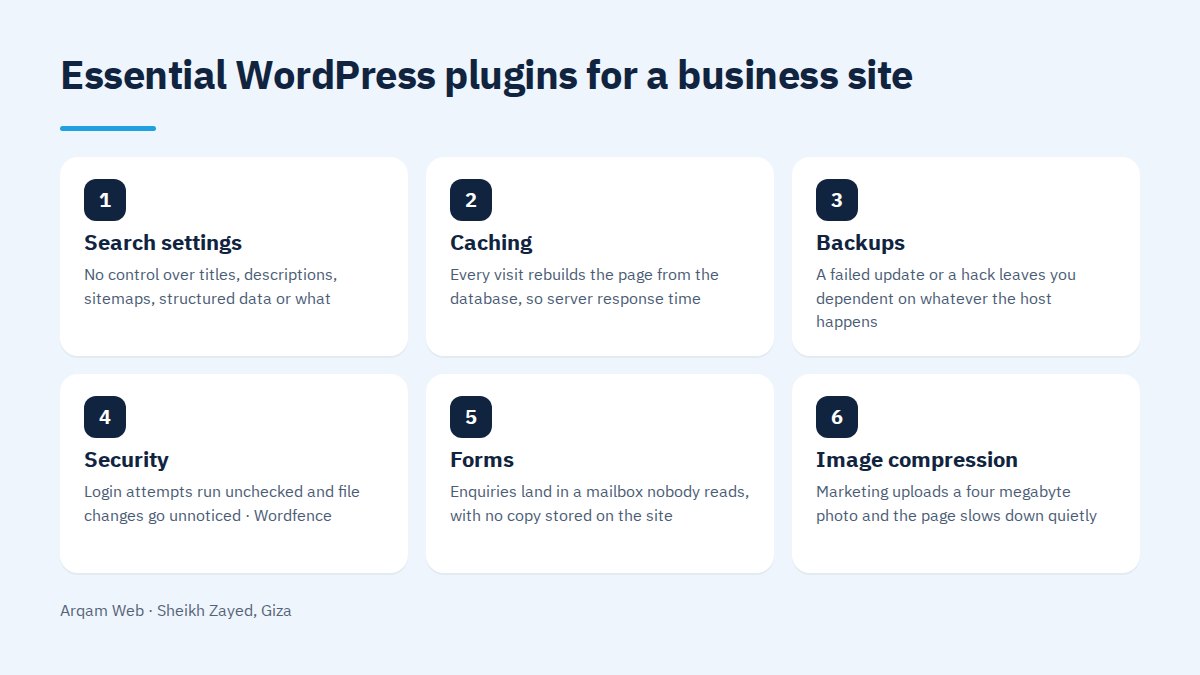
Choosing WordPress plugins starts from the job, not from the plugin name. The table below is the set we install on a company site before handover, and what goes wrong when the job is missing.
| Job | What breaks without it | Well known options |
|---|---|---|
| Search settings | No control over titles, descriptions, sitemaps, structured data or what gets indexed | Rank Math, Yoast SEO |
| Caching | Every visit rebuilds the page from the database, so server response time stays high | WP Rocket, LiteSpeed Cache |
| Backups | A failed update or a hack leaves you dependent on whatever the host happens to keep | UpdraftPlus |
| Security | Login attempts run unchecked and file changes go unnoticed | Wordfence |
| Forms | Enquiries land in a mailbox nobody reads, with no copy stored on the site | WPForms, Contact Form 7 |
| Image compression | Marketing uploads a four megabyte photo and the page slows down quietly | ShortPixel, Imagify |
| Redirects | Old URLs die after a restructure and the search equity dies with them | Redirection |
How many WordPress plugins is too many?
There is no official ceiling, and the count alone tells you little. Twenty light plugins can beat six heavy ones. The better question is whether each installed plugin maps to a job somebody can name.
What we usually find on a slow site is not one bad plugin but a layer of decisions nobody revisited: a slider from a campaign that ended, two form plugins because a freelancer preferred a different one, a gallery tool the theme already replaces.
Why fewer WordPress plugins usually means a better site
- Each one loads assets sitewide. Many plugins queue their CSS and JavaScript on every page, including pages that never use them.
- Each one is a standing update obligation. Ten plugins mean ten monthly chances of a conflict that takes a page down.
- Abandoned plugins turn into security holes. Code whose author stopped shipping fixes stays on your server anyway.
- Overlapping plugins fight each other. Two search plugins on one site emit duplicate tags and confuse indexing.
- Diagnosis gets harder. Finding the cause of a fault means switching things off one at a time, and a long list makes that a long afternoon.
How do you vet a plugin before installing it?
Five minutes of checking saves months of repair work. The order we follow with WordPress plugins:
- Read the last updated date. A plugin untouched for a year is out of the running with no further discussion.
- Ask whether the theme already does this. Commercial themes often ship galleries, forms and sliders you have already paid for.
- Measure the speed cost. Install it, test the page before and after, and decide on the number rather than the feeling.
- Check what it asks for. Database permissions, admin capabilities and outbound calls to services you have never heard of.
- Try it on a staging copy whenever the live site takes real orders.
- Confirm it uninstalls cleanly, leaving no orphan tables or shortcodes behind.
Which WordPress plugins do we leave out?
Animation libraries that load sitewide for an effect on one page. Public visitor counters, which tell your competitors more than they tell you. Heavy chat widgets that load before the content does. We also avoid all in one bundles combining search, caching and security, because one failure point then takes out three jobs at once.
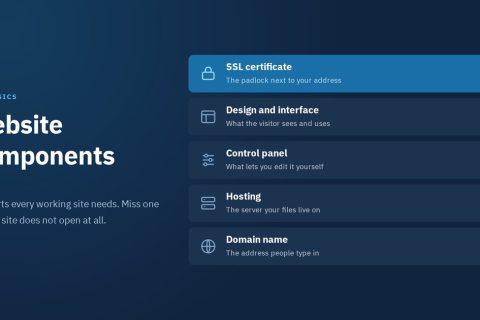
Page builders are a project by project call. A site your marketing team edits weekly earns a visual builder. A five page brochure site does not, and pays for it in load time forever. What belongs on the site in the first place is covered in website components.
Does an online store need different WordPress plugins?
A store starts from the same seven jobs and adds four more: the store platform itself, payment gateways, shipping calculation and category structure. On the Boya Store project we built a WooCommerce store working in Arabic and English, structured five product categories across seven international brands with a dedicated section for each brand, and set up checkout options including Visa, Fawry and cash on delivery, plus a dashboard the client’s own team uses to keep adding products.
The lesson from that build is sequencing. We reviewed the client’s existing product data before choosing the platform, rather than forcing products into a template already picked. Payment and shipping plugins follow from the catalogue, not the reverse.
Who updates the plugins, and when?
Updates belong to a named person on a known day. The rule: back up first, update in a quiet part of the week rather than the morning a campaign launches, then open the main pages and confirm the contact form still sends. That last check catches more than any dashboard notice.
Full automatic updates suit a simple brochure site where an hour of breakage costs nothing. A store or a site with integrations should update by hand so that someone is present to test the result.
Free or paid?
Free versions are usually enough for search settings, forms and redirects. For caching, image compression and backups, the paid tier buys time back and puts a support desk behind you when something fails at an awkward hour. Treat the total as an annual running cost beside hosting and the domain. What we handle on this side is described on the web design and development page, and the packages are on the pricing page.
Frequently asked questions
How many essential WordPress plugins should a business site run?
Seven jobs is the practical answer: search settings, caching, backups, security, forms, image compression and redirects. The number of plugins matters less than whether each one has a purpose somebody can state. If your list is longer, work out which entries serve a goal and which you inherited.
Do WordPress plugins always slow a site down?
No. The effect depends entirely on what the plugin does. One that writes a few tags into the page head costs almost nothing. One that loads an animation library on every page delays the content appearing. Testing the same page before and after installation is the only reliable way to know.
What if the site breaks after updating WordPress plugins?
Deactivate the plugin from the dashboard, or rename its folder through your file manager if you cannot log in. Once the site is back, restore your backup if you need to, then report the fault to the plugin author. This is exactly why the backup comes before the update.
Are free plugins safe to use?
Plugins published in the official directory go through review, and the real danger comes from pirated copies of paid plugins or from anything whose author stopped maintaining it. Judge by the last update date and whether support is answered in public. Avoid cracked versions completely, however tempting the saving looks.
Do I still need a search plugin on a custom built site?
A site built outside WordPress handles titles, sitemaps and structured data in its own code. On WordPress the search plugin stays the simplest way to keep all of that in one screen a non technical colleague can use without touching a single file. The alternative is calling a developer for every title change.
Have your plugin list reviewed
Send your site address and dashboard access and you will get a list of what to delete, what to replace and what stays, with the reason on each line.
The official rules for what a published plugin may and may not do are on the WordPress.org plugin guidelines page.
Request a quote · Message us on WhatsApp · Call us
Arqam Web
44 Central Axis, Al Saraya Mall, Lower Ground, Entrance 2, Sheikh Zayed, Giza, Egypt
Phone and WhatsApp: +20 111 872 1404 · Email: info@arqamweb.com