

A Google Analytics 4 setup is three ordered steps: create an account and a property, add a web data stream that gives you a measurement ID starting with G-, then place that ID on every page and confirm your own visit appears in the realtime report. Everything after that is tuning.
What do you need before a Google Analytics 4 setup?
Three things, and only one is technical. A Google account that belongs to you rather than to a developer who built the site years ago. Access to the site’s code or its admin panel. And a written list of the actions you count as success.
The third is the one that gets skipped, and skipping it produces an account full of data and empty of answers. Write the list first: form submitted, WhatsApp click, quote requested, purchase completed. That list becomes your key events later.
Google Analytics 4 setup step by step
- Create an account named after your company. One account holds all of your sites.
- Create a property for the site, and set the time zone and the currency carefully. The time zone decides where every reporting day ends, and changing it months later leaves a visible seam in your data.
- Add a web data stream with the address the site actually answers on, with www or without it.
- Copy the measurement ID that starts with
G-and keep it where you can find it again. - Install the code on every page of the site, by one of the methods below.
- Check the realtime report. Open the site on your phone and find yourself in there within a minute.
- Fix the quiet settings: data retention, internal traffic filtering, the Search Console link.
Step six separates a Google Analytics 4 setup that works from one that looks like it works. Do not move past it until you have watched your own visit arrive.
Where does each setting live?
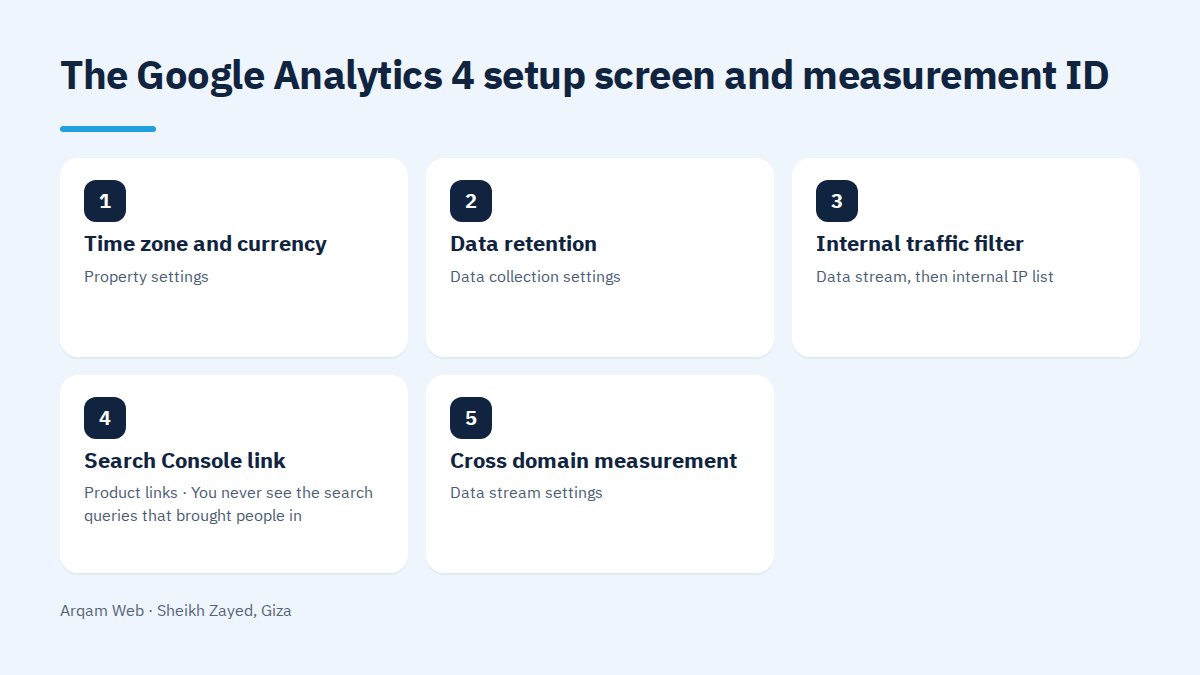
| Setting | Where | What happens if you leave it |
|---|---|---|
| Time zone and currency | Property settings | Daily reports offset from your real day, and purchase values in the wrong currency |
| Data retention | Data collection settings | The default is two months, so year on year comparison is gone before you need it |
| Internal traffic filter | Data stream, then internal IP list | Your own team inflates the totals and flattens every conversion rate |
| Search Console link | Product links | You never see the search queries that brought people in |
| Cross domain measurement | Data stream settings | A visitor moving to your payment domain is counted as a new person |
How do you install the measurement code?
Three routes are common, and the right one depends on who maintains the site. Pasting the snippet into the head of every page suits a custom build and gives the most control. Entering the measurement ID in a dedicated field inside a WordPress theme or site builder is fastest for anyone who does not touch code. Running it through a container is the third, and it earns its place once several tracking codes are involved.
One rule holds across all three routes of a Google Analytics 4 setup: exactly one copy of the code per page. Two copies mean every visit is counted twice, which produces a bounce rate that looks excellent for no reason at all.
What is measured automatically, and what must you define?
A good part of the work is already done once the code is live, thanks to enhanced measurement. Out of the box it records page views, scroll depth, clicks that leave your domain, internal site searches, video engagement, file downloads and form interactions.
What the account cannot know is what any of it is worth to you. A tap on a WhatsApp number is an event with no inherent value, so marking the important ones is your job. In this version they are called key events, a rename of what used to be conversions.
The method is short: perform the action on your own site, find it in the events list, then switch it up to key event status. Start with three and no more: the main form, the call or WhatsApp tap, and the purchase if you run a store. Ten key events on a small site make everything look important, and then nothing drives a decision.
Settings people skip after a Google Analytics 4 setup
- Data retention. Raise it from two months to fourteen so you can compare one season against the same season last year.
- Internal traffic. List the office and team IP addresses, and remember that the filter needs activating after it is defined, not merely created.
- Unwanted referrals. Exclude your payment gateway domain so sales stop being credited to it instead of to their real source.
- Permissions. Keep ownership in your company’s name and give an agency or a developer editor access you can withdraw whenever you want.
- Naming. Agree one format for event names on day one, because renaming later does not repair the data already collected.
Which reports matter in the first month?
Four are enough at the start. Traffic acquisition tells you where people come from. The pages report shows what they actually read rather than what you hoped. The key events view answers whether anyone completed the action that pays you. Realtime is for verification after any change.
Treat the first week as installation, not as a baseline. Let a full month accumulate before drawing any conclusion from a Google Analytics 4 setup, and read your website goal before that, since measurement without a written goal is collecting numbers for their own sake.
Frequently asked questions
Is a Google Analytics 4 setup free?
Yes. The standard version costs nothing and covers most small and mid sized sites with no practical limit worth worrying about. The paid tier is aimed at organisations with very large data volumes and specific integration needs, and it is arranged directly with Google. A brochure site or a mid sized store will not reach it.
How long does a Google Analytics 4 setup take?
Creating the account, the property and the data stream and installing the code is about an hour of work on a simple site. Defining key events, checking them and confirming the numbers are honest takes longer and is better spread across days, because some faults only surface after a week of data.
Why is no data showing after my Google Analytics 4 setup?
Four causes cover most of it: the code is on one page instead of the template, or it sits somewhere that never loads, or the measurement ID was copied from a different property, or an ad blocker in your own browser is stopping the request. Open the site on your phone on mobile data to rule out the last one.
Should I keep the old Universal Analytics account?
Its historical data is no longer available after the service closed, and it cannot be moved into the new property because the measurement model itself is different. Keep any reports you exported, treat the current property as a fresh start, and record the first day of collection somewhere visible.
Does measurement conflict with privacy rules?
The duty to tell visitors what you collect, and to offer them a choice, sits with you through a clear privacy policy and a cookie notice written in plain language. This is general information rather than legal advice, and the final word belongs to your own counsel and to the law in each market you sell in.
Have your measurement reviewed
Send your site address with a short note on what you want to measure, and we will reply with what the account is missing and what can go. See also the web design and development page, how to benefit from your site and the pricing page.
The official creation steps are documented in the Google Analytics help centre.
Request a quote · Message us on WhatsApp · Call us
Arqam Web
44 Central Axis, Al Saraya Mall, Lower Ground, Entrance 2, Sheikh Zayed, Giza, Egypt
Phone and WhatsApp: +20 111 872 1404 · Email: info@arqamweb.com