

Image compression for websites is the cheapest speed win available: pick the right format, resize before you upload, set quality between 75 and 85, and declare dimensions in the markup. Nobody sees the difference between a three megabyte photo and a two hundred kilobyte one, but mobile visitors feel it.
Why are images the number one cause of slow sites?
Images are usually the heaviest thing a page downloads. Text and code are measured in kilobytes, while one photo straight out of a phone camera can run to several megabytes. Uploaded untouched, that single file outweighs everything else on the page combined.
Worse, the heavy image normally sits near the top, so it is the largest visible element and the first thing a visitor waits for. Delaying it leaves the page looking empty for extra seconds. Read how to benefit from your site for the commercial side: a visitor who leaves before the page loads never saw your offer.
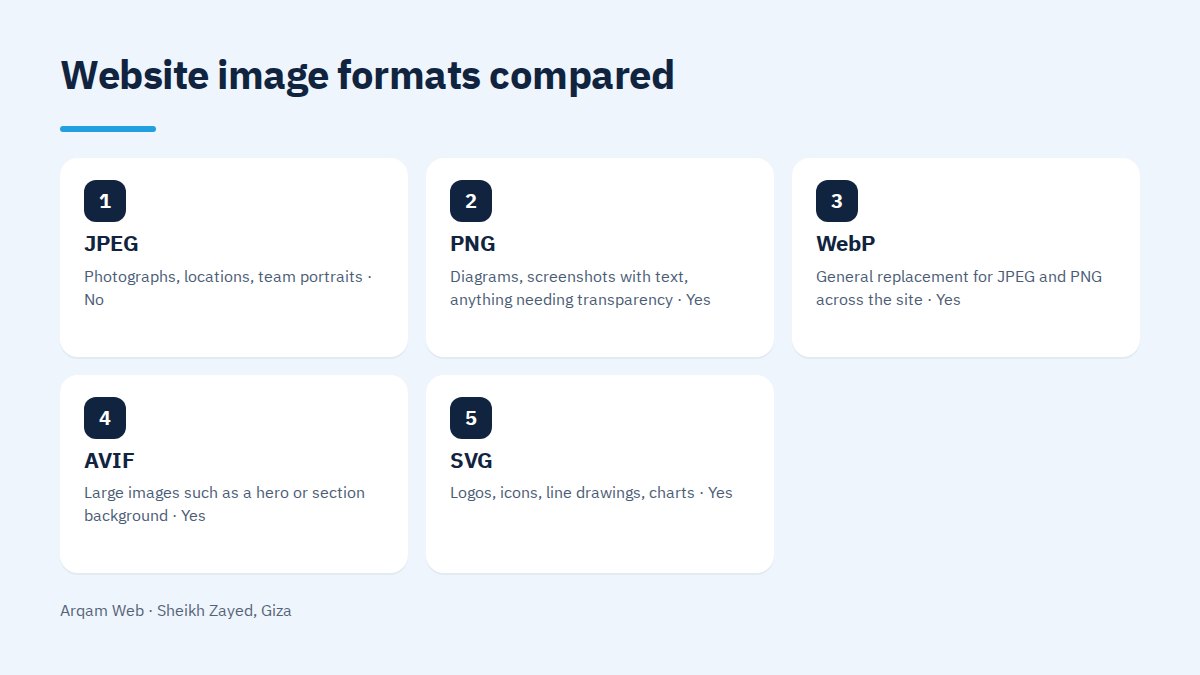
Which image format should you use, and when?
| Format | Use it for | Transparency | Note |
|---|---|---|---|
| JPEG | Photographs, locations, team portraits | No | Lossy, and good with colour gradients |
| PNG | Diagrams, screenshots with text, anything needing transparency | Yes | Very large on photographs |
| WebP | General replacement for JPEG and PNG across the site | Yes | Smaller at equivalent quality, supported in current browsers |
| AVIF | Large images such as a hero or section background | Yes | Usually smaller than WebP, but slower to encode |
| SVG | Logos, icons, line drawings, charts | Yes | Scales to any size with no quality loss, not for photographs |
The working rule in image compression for websites: photographs ship as WebP or AVIF, logos and icons ship as SVG, and PNG stays for cases needing fine transparency.
Lossy or lossless image compression for websites?
Lossless compression reorders the file data and strips what never displays, so the result matches the original pixel for pixel while saving a little. Lossy compression discards detail the eye does not register, saving far more for a difference nobody notices in normal use.
The choice is straightforward. General pages use lossy compression at quality 75 to 85, the range that gives the best trade on most images. Product photographs customers zoom into to inspect fabric weave or marble veining deserve a higher setting, or lossless compression with a smaller dimension to make up the weight.
Resize before you upload
The most common mistake we find is a 4000 pixel wide photo in a slot that never displays wider than 800 pixels. The browser downloads the whole file and shrinks it on screen, so you pay for data nobody sees.
- A full width hero needs 1600 to 2400 pixels, no more.
- An in article image needs about twice its display width to stay crisp on high density screens.
- A listing thumbnail needs a few hundred pixels, not the same file as the full size page.
- A logo needs no dimension at all when it is an SVG.
The rule in image compression for websites is to resize first and compress second. Doing it the other way round means compressing data you are about to throw away.
Responsive images and the srcset attribute
A phone and a desktop monitor do not need the same file. The srcset attribute lets you publish several sizes of one image, and the browser picks the size suiting the screen width and pixel density before downloading.
Most content management systems generate those sizes on upload, but they need configuring so they produce the sizes your theme actually requests rather than defaults nothing calls for. Check website components to see which parts of a page carry images needing this setup.
Lazy loading, and when not to use it
Lazy loading means an image is not fetched until the visitor scrolls near it. The benefit is obvious on long pages and product listings, because someone reading the first section never asked for the twenty images below it.
The important exception: never lazy load the hero or anything visible on the first screen. Deferring it delays the largest visible element, so the page takes longer to appear. First screen loads immediately, everything after it waits.
Set dimensions in the markup to stop layout shift
An image with no declared width and height starts at zero size, so text jumps down the moment it arrives. A visitor mid sentence or about to tap loses their place, one of the worst things on a phone.
Every image should carry width and height attributes, letting the browser reserve the space before the file lands. It is a free step unrelated to file size, yet it belongs to any serious work on image compression for websites.
Which free tools handle image compression for websites?
You do not need paid software. Three groups cover it: browser based compressors such as Squoosh, which show the before and after and export WebP and AVIF; command line tools that process whole folders at once; and plugins that convert and compress during upload.
The plugin route is easier and riskier, because it applies one setting to every image. Try it on a small batch and inspect the output yourself before running it across the whole media library.
A workflow for image compression for websites in a non technical team
- Fix approved sizes for each slot on the site: hero, article image, product photo, thumbnail.
- Resize every file to its approved size before it touches a compressor.
- Compress at quality 75 to 85, export WebP, and keep the original in a separate folder.
- Inspect the result on a phone screen, not only a desktop monitor.
- Upload and write real alt text describing the image.
- Measure the page afterwards and confirm the image is no longer its heaviest element.
Six steps on one page make image compression for websites a habit rather than an emergency. If you would rather hand it over with the rest of the site work, the pricing page explains how we calculate and the web design and development page covers what we do.
Frequently asked questions
What is the best format for website images?
WebP is the general choice for photographs, because it gives a smaller file at equivalent quality and is supported in current browsers. Use AVIF for very large images if your setup allows, SVG for logos and icons, and keep PNG for cases that genuinely need fine transparency.
What quality setting should I compress at?
A range of 75 to 85 suits most images and gives the best trade between weight and appearance. Push it higher for product photographs customers zoom into, and lower it slightly for backgrounds and large decorative images nobody studies closely. Always check the output yourself.
Does image compression for websites damage quality?
Not when you handle size and quality in the right order. Damage shows up when an already small image is compressed again and again, or when a format is converted and then recompressed on top of a compressed result. Always work from the stored original and export a fresh copy.
Should I lazy load every image?
No. Defer only what sits below the first screen, and let the hero and everything visible without scrolling load immediately. Deferring a first screen image delays the largest visible element, which makes the site feel slower and defeats the purpose.
Are plugins enough, or do I need manual work?
A plugin solves the repetitive part, which is converting and compressing on upload. It cannot pick the right dimension or decide which photograph deserves a higher setting. Combine both: a plugin running automatically on new files, and one manual pass over the existing library.
Have your images checked
Send your site address and you will get a list of its heaviest images, the size and format we suggest for each, and what the page saves once replaced.
Request a quote · Message us on WhatsApp · Call us
Arqam Web
44 Central Axis, Al Saraya Mall, Lower Ground, Entrance 2, Sheikh Zayed, Giza, Egypt
Phone and WhatsApp: +20 111 872 1404 · Email: info@arqamweb.com
The technical reference for image formats and responsive images is the images guide on web.dev.